
When the Picture Will Not Stay Steady
A flickering television screen can quickly interrupt films, programmes, gaming and everyday viewing. The picture may flash, briefly become darker or brighter, turn black, or display unstable lines. In some cases, the problem affects the entire screen, while in others, it appears only when using a specific application or connected device. If basic settings and connection checks do not resolve the problem, professional Smart TV Screen Repair in Dubai may be needed to determine whether the fault lies with software, an HDMI connection, the backlight, the power supply, or the display system.
Screen flickering does not always mean that the display panel has failed. Temporary software problems, loose cables and incorrect picture settings can produce similar symptoms. Observing when and how the flickering happens can help narrow down the cause. In this blog, we will explain nine common reasons a Smart TV screen flickers, the troubleshooting steps you can perform safely, and the warning signs that indicate professional inspection is required.
What Type of Flickering Are You Experiencing?
Before changing settings or replacing cables, notice how the problem behaves. The flickering pattern can provide useful information about its source. Ask yourself:
- Does the whole screen flicker or only one section?
- Does it happen on every channel and application?
- Does it affect only an HDMI-connected device?
- Does the screen become darker and brighter?
- Does the picture disappear while sound continues?
- Does the flickering begin after the TV warms up?
- Are lines or coloured patches also visible?
A problem limited to one application or connected device may not involve the TV screen. Flickering across every source is more likely to involve settings, power, backlights or internal components.
An HDMI Cable Is Loose or Damaged
A poor HDMI connection can interrupt the video signal between the TV and a connected device. The screen may flash, show static, lose colour or briefly turn black. Switch off both devices before disconnecting and reconnecting the HDMI cable. Make sure the plugs fit securely and that the cable is not sharply bent, crushed or visibly damaged.
Try another HDMI cable and test a different port on the television. If the flickering stops, the original cable or port was likely responsible. Avoid repeatedly moving a loose HDMI plug while the TV is operating. This can damage the port or connection points on the main board.
A Connected Device Is Producing an Unstable Signal
The television may be working correctly while a receiver, gaming console, streaming box or other connected device sends an unstable video signal. Test the TV’s built-in menu and streaming applications. If they display normally but the flickering returns when you select one external device, inspect that device’s settings and connections.
The selected resolution or refresh rate may not be fully compatible with the television. Restore the connected device to an automatic or supported display setting and restart it. Testing another device through the same HDMI port can help determine whether the problem comes from the external equipment, cable or television input.
Picture Settings Are Creating the Effect
Smart TVs include brightness control, motion enhancement, automatic contrast, energy-saving, and local dimming settings. Certain combinations can cause visible brightness changes that appear similar to flickering. Open the picture menu and temporarily disable automatic brightness, motion processing, and aggressive energy-saving options. You can also restore the picture mode to its default values.
Test a standard picture mode before adjusting individual controls. If the flickering disappears, reactivate features one at a time to identify which setting caused the problem. Avoid changing many settings together because it becomes difficult to determine which adjustment improved or worsened the picture.
A Streaming Application Has Frozen
If flickering occurs only in one streaming application, the television screen may not be faulty. The application could be experiencing a temporary error, playback problem or corrupted stored data. Close the application and restart the television. Check whether other applications and regular channels display normally.
If the problem returns, you may need to:
- Sign out and reopen the application.
- Clear its temporary data where the TV allows it.
- Check for an application update.
- Reinstall the application if supported.
- Test the same content through another device.
Internet interruptions usually cause buffering or reduced picture quality rather than physical screen flickering. However, application errors can make video playback appear unstable.
The Smart TV Software Needs Attention
The television’s operating system manages applications, inputs, picture processing and connected features. A software error can cause flickering, freezing, delayed response or repeated restarting. Perform a controlled power restart by switching the TV off, disconnecting it from the socket and waiting several minutes before reconnecting it. Check the television’s settings for an available system update. Make sure the power supply remains stable during installation and do not disconnect the TV while the update is running.
If flickering begins immediately after an update, the system may require another restart or a settings reset. A factory reset should be treated as a later step because it removes saved applications, accounts and personalised settings. When software troubleshooting does not resolve the issue, professional Smart TV Repair Services in Dubai can determine whether the problem is software-related or caused by internal hardware.
The Electrical Supply Is Unstable
Voltage changes, loose socket connections, and overloaded extensions can affect television operation. The screen may flash, the TV may restart, or the picture may disappear briefly. Connect the television directly to a suitable wall socket for testing. Avoid using a damaged extension or sharing one outlet with several high-consumption devices.
Stop using the TV if the plug, socket or power cable becomes unusually hot. A burning smell, buzzing socket or visible spark requires immediate attention. If other electrical devices also flicker or restart, the issue may be related to the property’s power supply rather than the television alone.
The Television Is Overheating
Televisions need airflow around their ventilation openings to release internal heat. When these vents are blocked, components may become too warm and behave inconsistently. Flickering caused by heat may begin after the TV has been operating for some time. The screen may work normally when first switched on and become unstable later. Check whether:
- The TV is installed too close to the wall
- Ventilation openings are covered
- Dust has collected around the rear vents
- Another device is producing heat beneath the TV
- Direct sunlight reaches the television for long periods
Switch the TV off and allow it to cool. Do not remove the back panel or insert tools into the ventilation openings.
The LED Backlight or Driver Is Failing
LED televisions use backlight strips to illuminate the display. If one or more LEDs begin failing, the picture may flicker, pulse or become unevenly bright. The issue may be more noticeable during bright scenes or when the backlight setting is high. Some TVs briefly flash before the picture disappears completely.
The LED driver or power-supply section controlling the backlight can create similar symptoms. A technician may need to test the backlight strips and power output before determining which component is faulty. Backlight replacement requires careful screen disassembly. Attempting it without suitable experience can crack the display panel.
The T-Con Board, Main Board or Display Panel Is Faulty
The T-Con board controls picture timing and sends visual information to the display panel. A fault can cause flashing, lines, distorted colours or an unstable image. A main-board problem may create flickering across applications and inputs. It can also cause slow performance, HDMI problems, freezing or repeated restarting.
Display-panel faults may affect the entire screen or only one section. Common signs include permanent lines, coloured areas, dark patches and flickering that reacts when the television frame becomes warm. Because these faults can produce similar symptoms, the internal boards and connections should be tested before an expensive component is replaced.
What Can You Check Safely at Home?
Several checks can be completed without opening the television:
- Test different channels and built-in applications.
- Disconnect external HDMI and USB devices.
- Try another HDMI cable and input port.
- Restore the picture mode to its default settings.
- Disable automatic brightness temporarily.
- Perform a controlled power restart.
- Check for ventilation restrictions.
Observe whether flickering begins after the TV warms up.
Record a short video of the problem if the flickering happens occasionally. This can help the technician understand the symptoms if the screen behaves normally during inspection.
What Can You Check Safely at Home?
Several checks can be completed without opening the television:
Record a short video of the problem if the flickering happens occasionally. This can help the technician understand the symptoms if the screen behaves normally during inspection.
When Should You Stop Using the TV?
Switch the television off if the flickering is accompanied by a burning smell, smoke, sparks, loud buzzing or repeated electrical clicking. The TV should also remain disconnected if liquid entered the unit, the power cable is damaged or the screen was recently struck.
Continued operation could worsen an electrical, backlight or panel fault. A screen that flickers briefly because of one loose cable is different from a television that flashes across every input and repeatedly restarts. Persistent problems should not be ignored.
When Should You Stop Using the TV?
Switch the television off if the flickering is accompanied by a burning smell, smoke, sparks, loud buzzing or repeated electrical clicking. The TV should also remain disconnected if liquid entered the unit, the power cable is damaged or the screen was recently struck.
Continued operation could worsen an electrical, backlight or panel fault. A screen that flickers briefly because of one loose cable is different from a television that flashes across every input and repeatedly restarts. Persistent problems should not be ignored.
How Does a Technician Diagnose Screen Flickering?
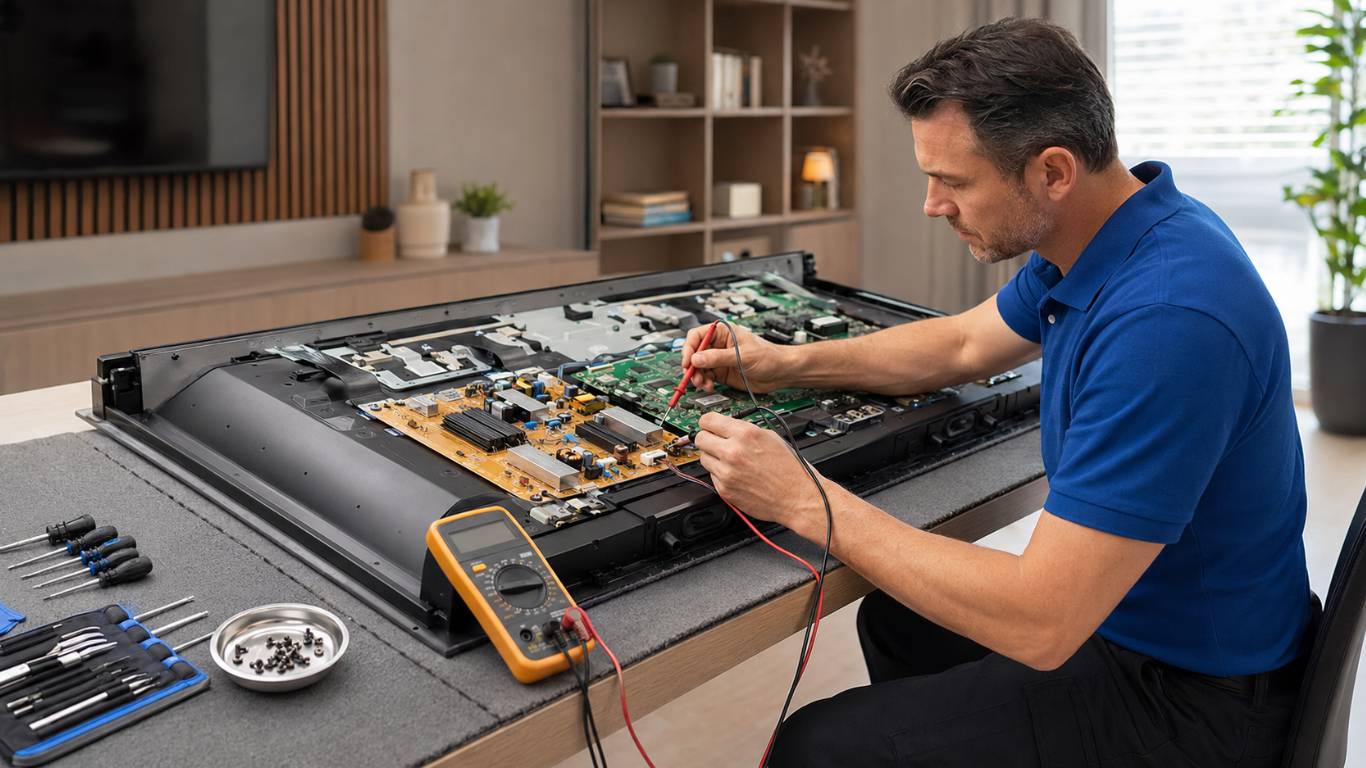
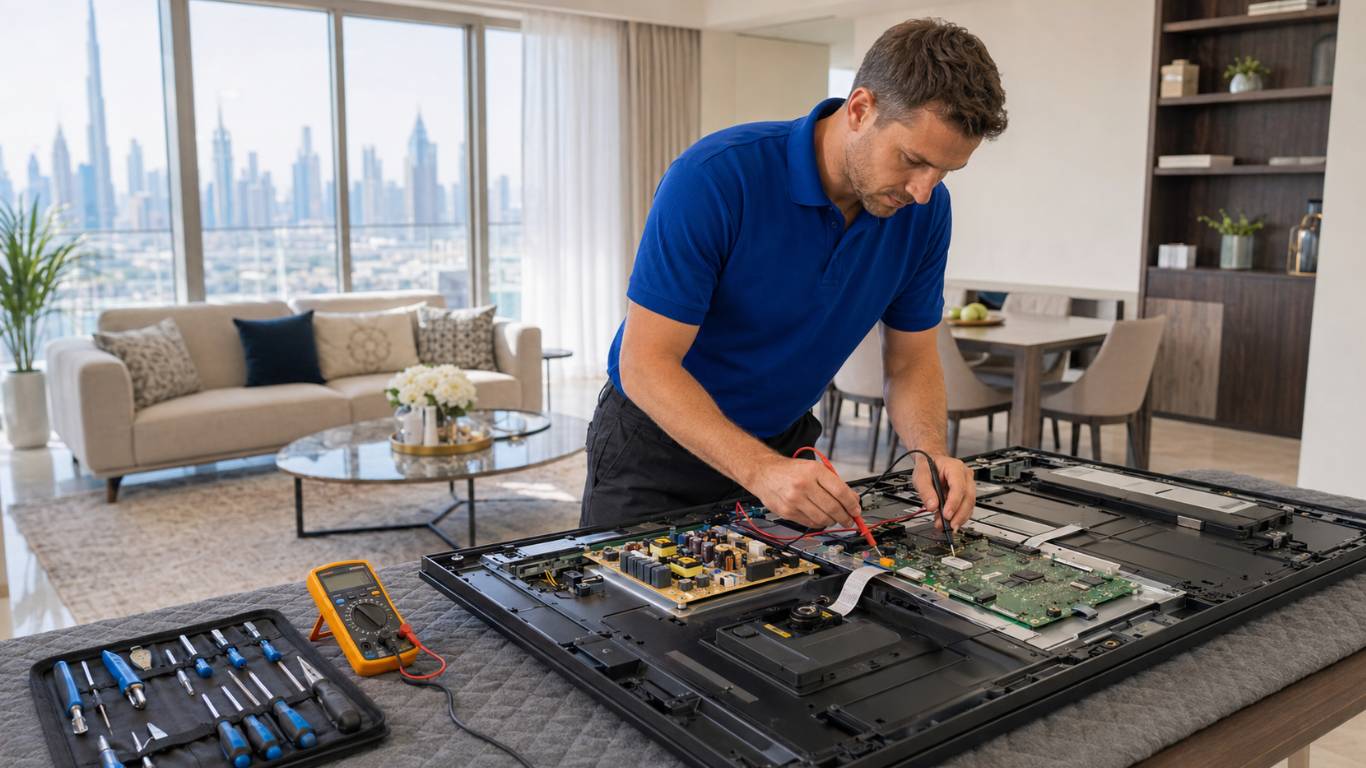
Diagnosis begins by checking whether the issue affects every source. The technician may test built-in applications, HDMI devices and the TV menu before examining internal components.
Depending on the symptoms, the inspection may include:
- Testing HDMI ports and signal stability
- Checking software and picture settings
- Measuring power-supply outputs
- Inspecting the LED backlight system
- Testing the T-Con and main boards
- Examining ribbon cables and connectors
- Checking for heat-related damage
- Assessing the display panel
A structured inspection helps separate a connection or setting problem from a backlight, board or panel fault.
Restore a Stable and Clear Smart TV Picture
Screen flickering may result from a cable, connected device, picture setting, software error, unstable power supply, overheating, backlight fault or damaged internal board. Begin with safe checks and observe whether the problem affects every source. If flickering continues, avoid opening the TV or replacing components without testing.
AtoZ Appliances Repair provides Professional Appliance Repair in Dubai for residential and commercial customers. A detailed inspection can identify the source of the flickering and determine whether adjustment, software correction or component repair is required.